Variation Gallery for WooCommerce
01. Installation
Back To TopAUTOMATIC INSTALL FROM WORDPRESS DASHBOARD
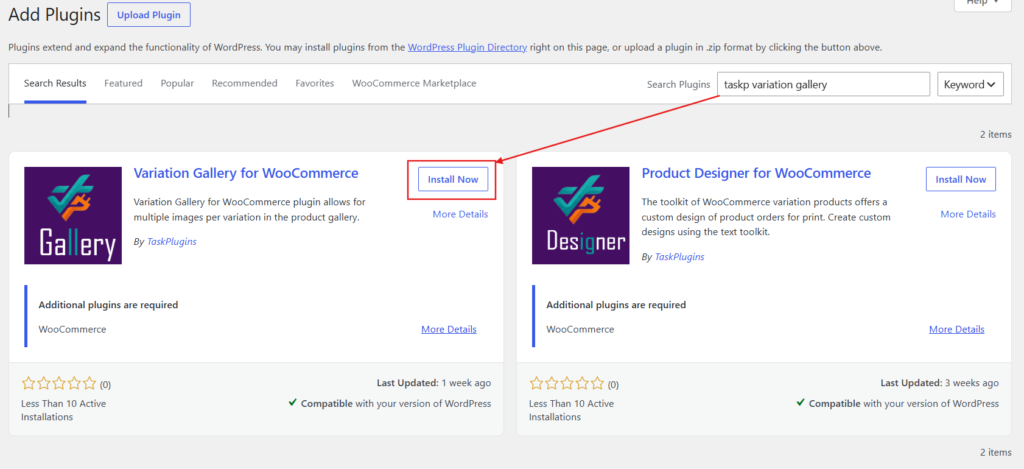
- Go to WordPress Admin Panel → Plugins → Add Plugin
- Search plugin for Taskp Variation Gallery in the search field. Install and Activate Variation Gallery for WooCommerce Plugin by TaskPlugins.
- Click install and activate.
MANUAL INSTALL FROM WORDPRESS DASHBOARD
If your server is not connected to the Internet, then you can use this method-
- Download the plugin by clicking on the free download button above. A ZIP file will be downloaded.
- Go to WordPress Admin Panel → Plugins → Add Plugin → Upload Plugin
- Click choose file, select the plugin file and click install
INSTALL USING FTP
If you are unable to use any of the methods due to internet connectivity and file permission issues, then you can use this method-
- Download the plugin by clicking on the free download button.
- A ZIP file will be downloaded.
- Unzip the file.
- Launch your favorite FTP client. Such as FileZilla, FireFTP, CyberDuck, etc. If you are a more advanced user, then you can use SSH too.
- Upload the folder to
wp-content/plugins/ - Go to WordPress Admin Panel → Plugins → Installed Plugins
- Activate the plugin
02. Installation (Advanced)
Back To TopThe advanced feature of Variation Gallery Pro for WooCommerce has been packed in an extension. To enable advanced version of this plugin on your site, you need to enable premium extension besides the Free Version.
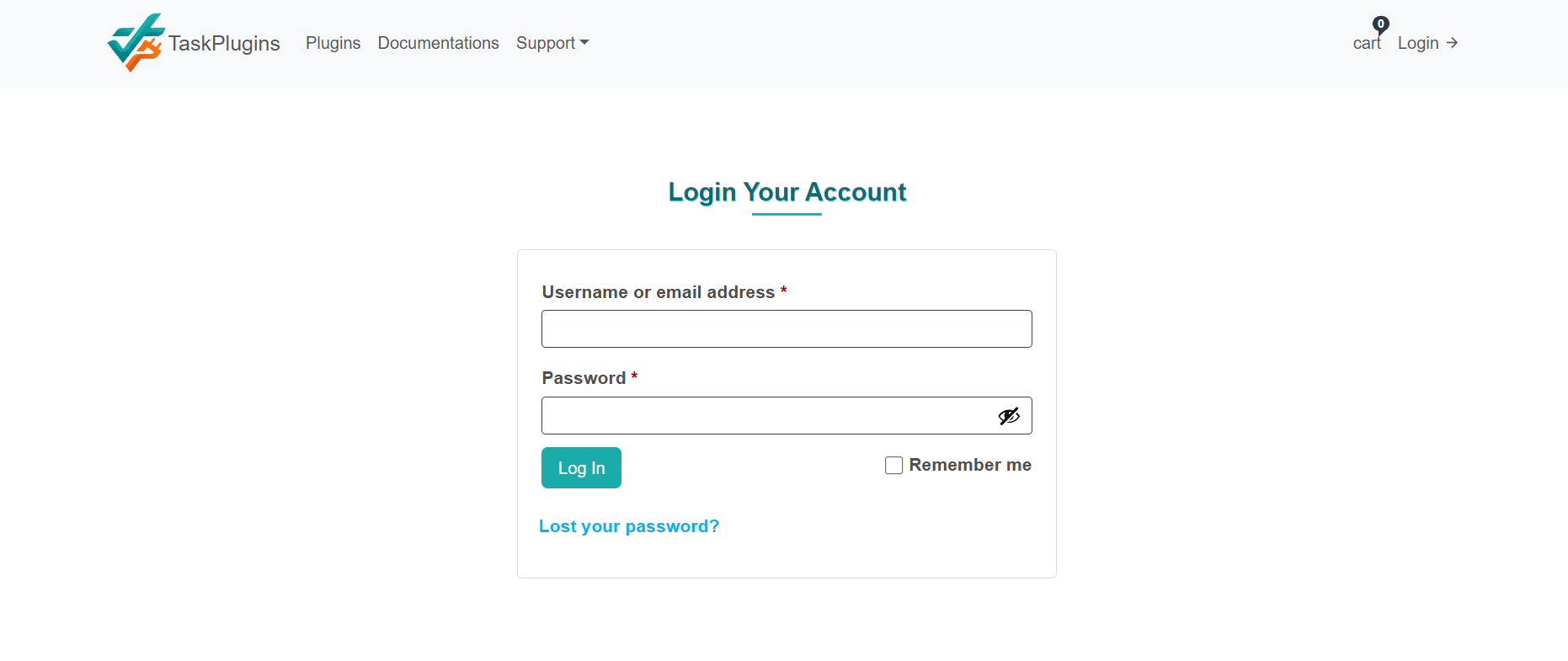
→ 1. Login to TaskPlugins.com website.
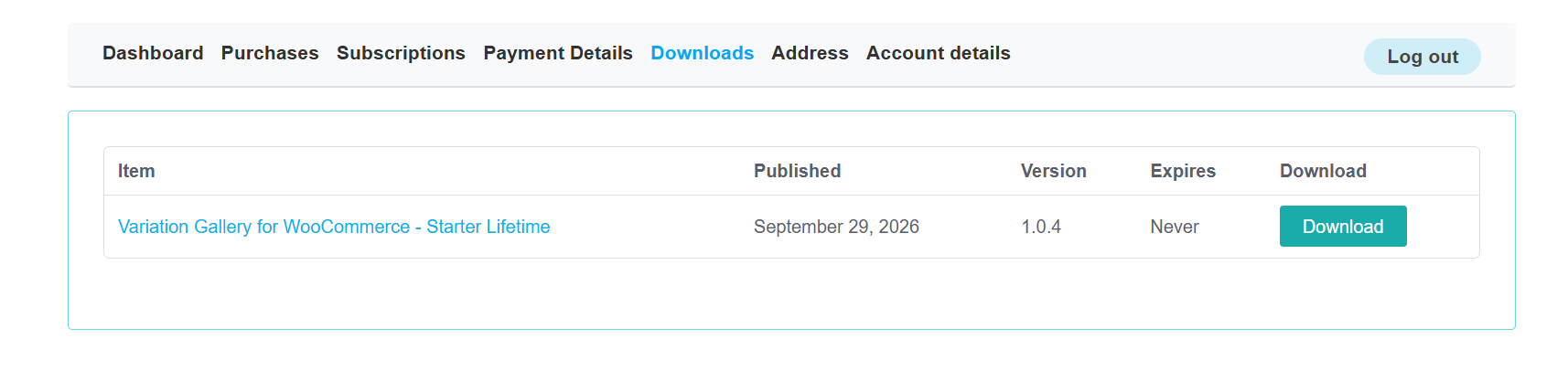
→ 2. Head to the My Downloads from My Account.
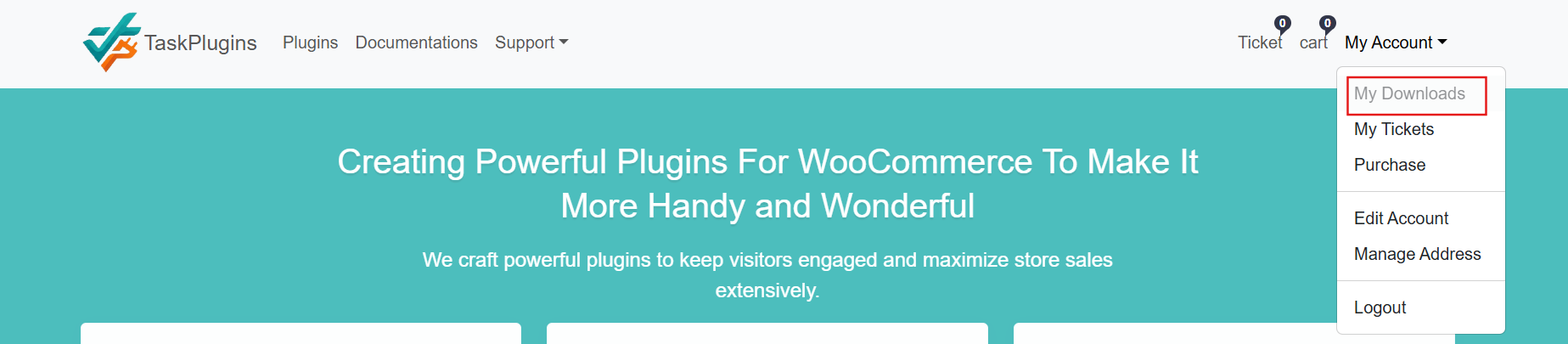
→ 3. Press download button to download Variation Gallery for WooCommerce Pro plugin.
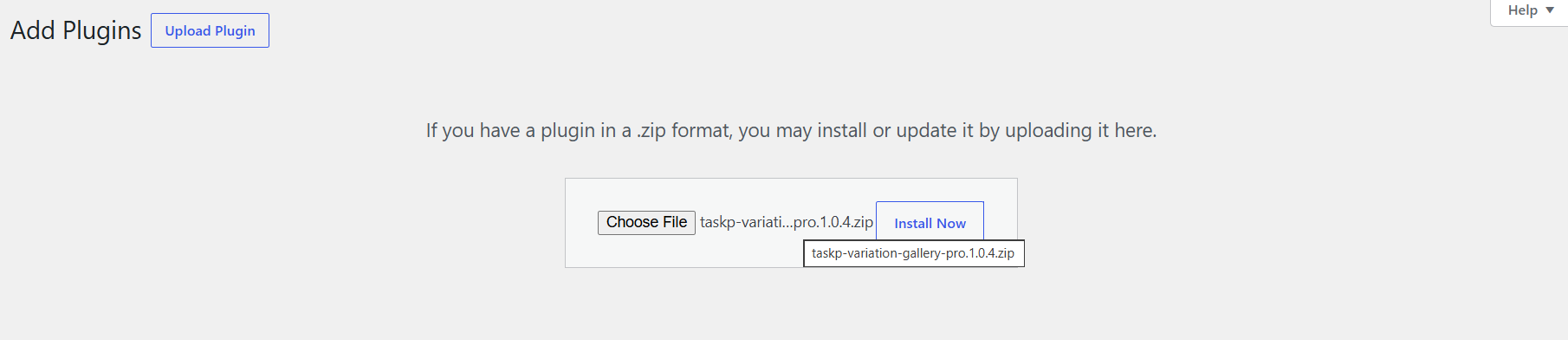
→ 4. Navigate to WordPress Admin Panel → Plugins → Add New and Press Upload Plugin to Install and Activate download taskp-variationa-gallery-pro plugin.
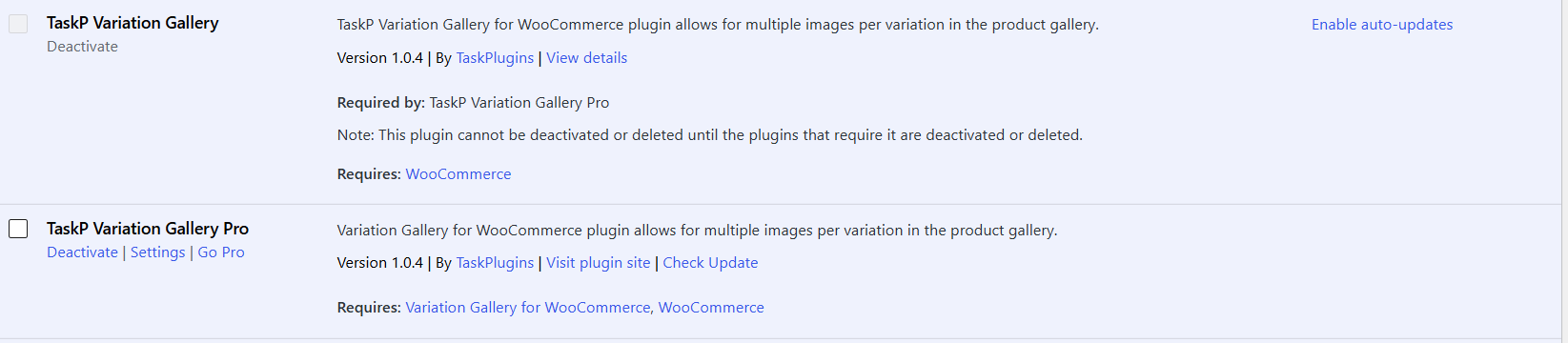
→ 5. After Installing Premium version of Variation Gallery Pro for WooCommerce plugin. It would appear after free version
03. Automatic Update For Premium Version
Back To TopNavigate to your My Account → Purchases from TaskPlugins.com.
Firstly, register your domain where automatic update for Variation Gallery for WooCommerce Pro plugin needs to activate. Click the Manage Sites button.
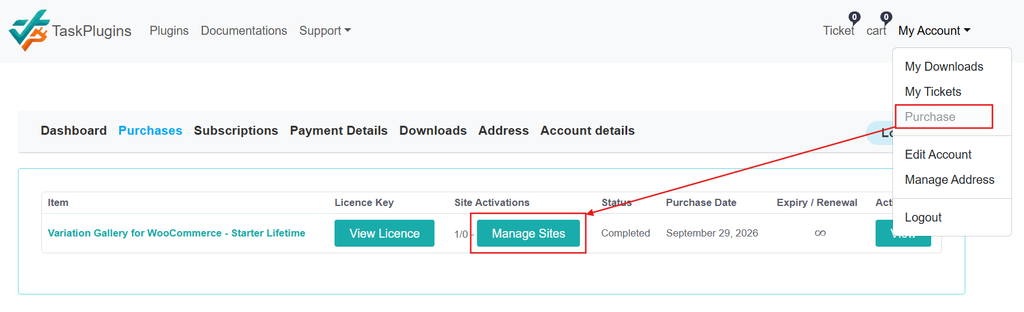
Click the Register New Domain button.
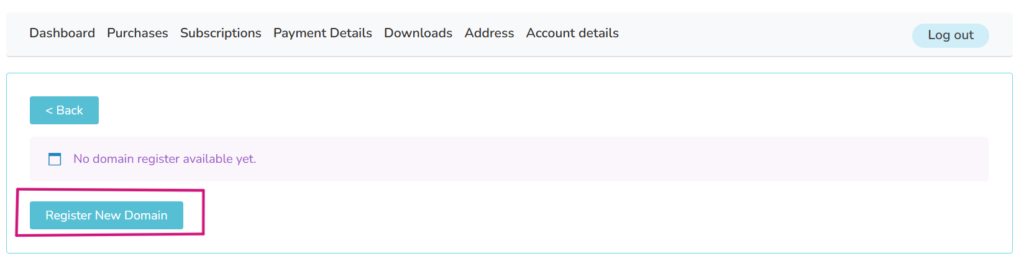
Enter you domain name in domain area and press Add Domain button.

Secondly, Each purchase of item comes with license key, click the View License from purchases.
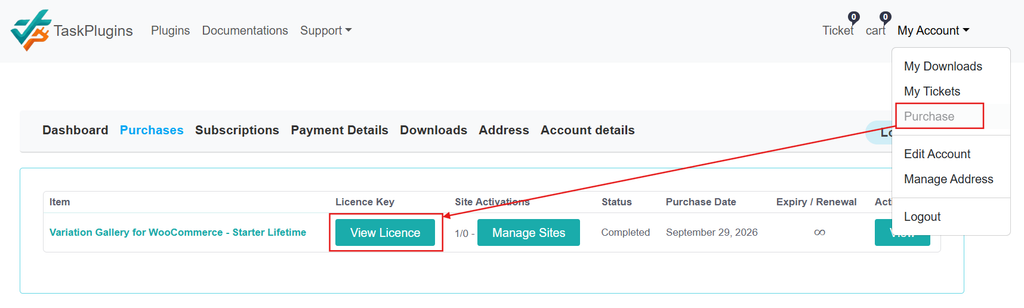
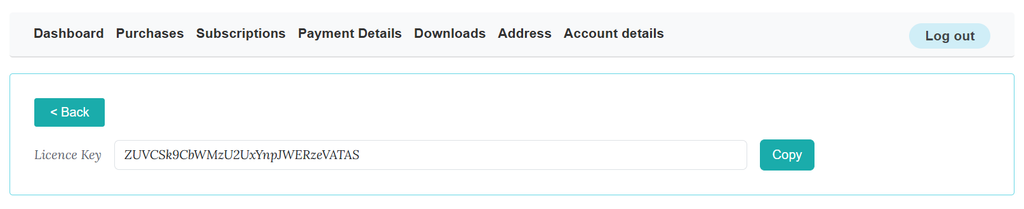
Copy the License Key from the view license.
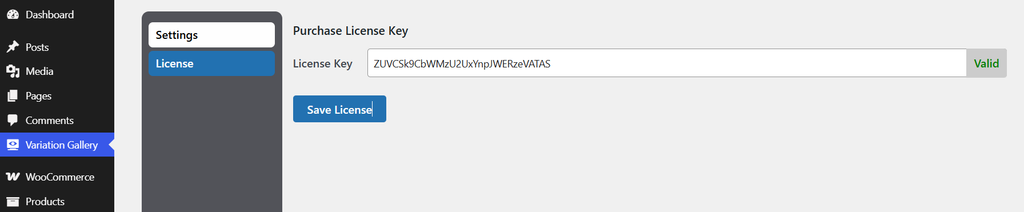
After copying the License Key, head to the site backend where automatic update needs to activate. Navigate to WordPress Admin Panel → Variation Gallery → License. Paste the copied License Key code in License Key field. When it's done, press the Save License button.
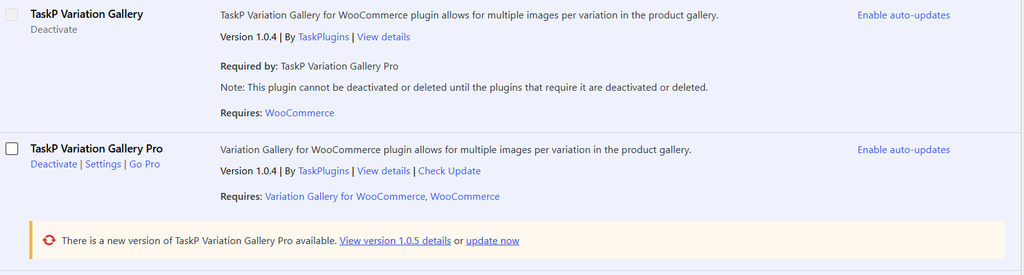
Finally, after successfully registering domain name in the dashboard given at taskplugins.com and adding purchase key plugin's License Key section. The following update notice would appear in Plugins section.
04. How to Use Variation Gallery
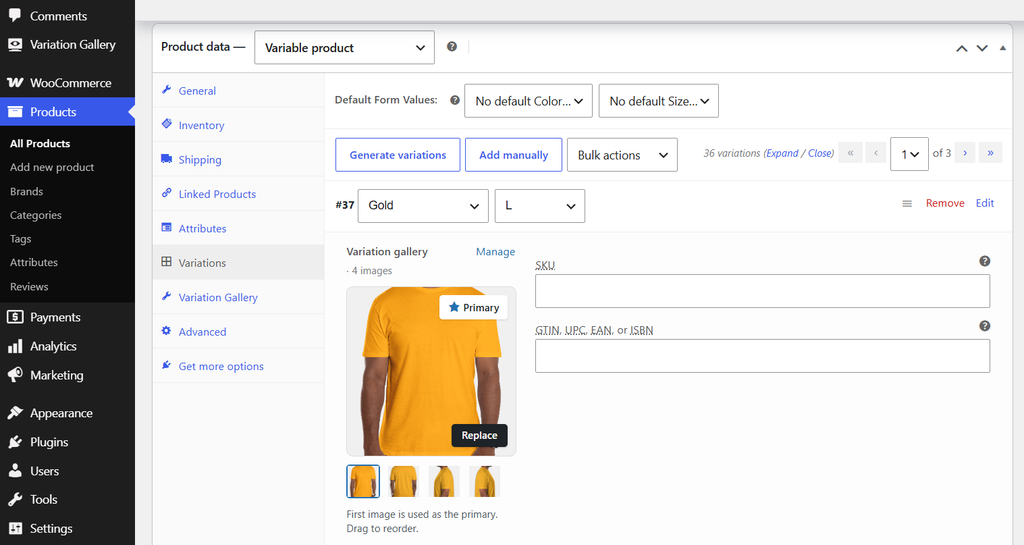
Back To TopBy default, WooCommerce add multiple gallery images to each specific product variation.
- Go to WordPress Admin Panel → Products
- Product type is variable product.
- Select the Variations tab
- To open a Variation Accordion box
05. How to Access the Product Settings ( Optional )
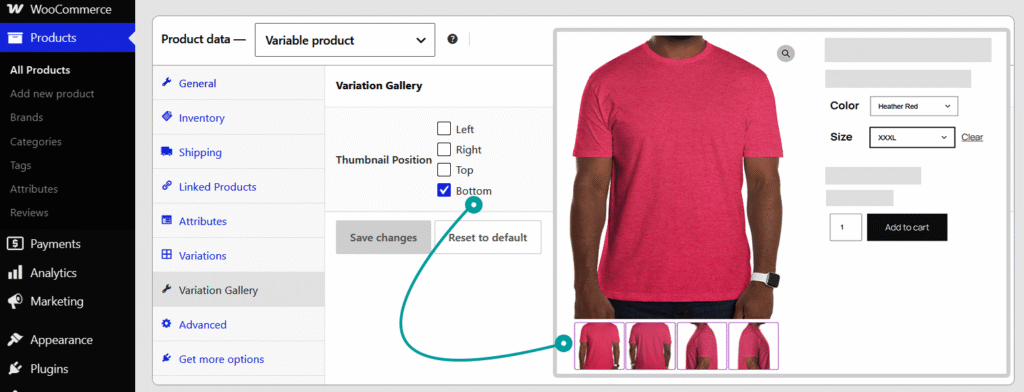
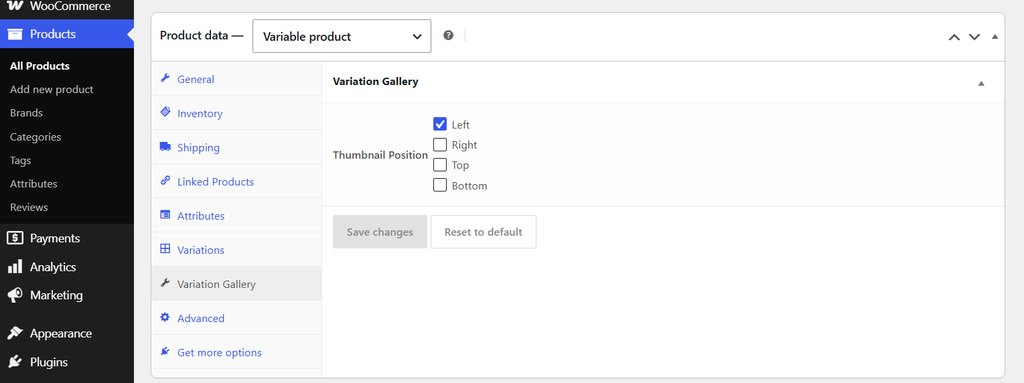
Back To TopIf you do not have global overrides enforced, you can customize gallery behavior per product. While editing a Variable Product, look for the newly added Variation Gallery tab in the Product Data panel. Here, you can configure settings specifically for the product you are currently editing.
- Go to WordPress Admin Panel → Products → Variable Product
- Click the Variation Gallery tab
- Select the checkbox of Thumbnail Position
- Click the Save Changes
06. How to Access Override All Product`s Settings
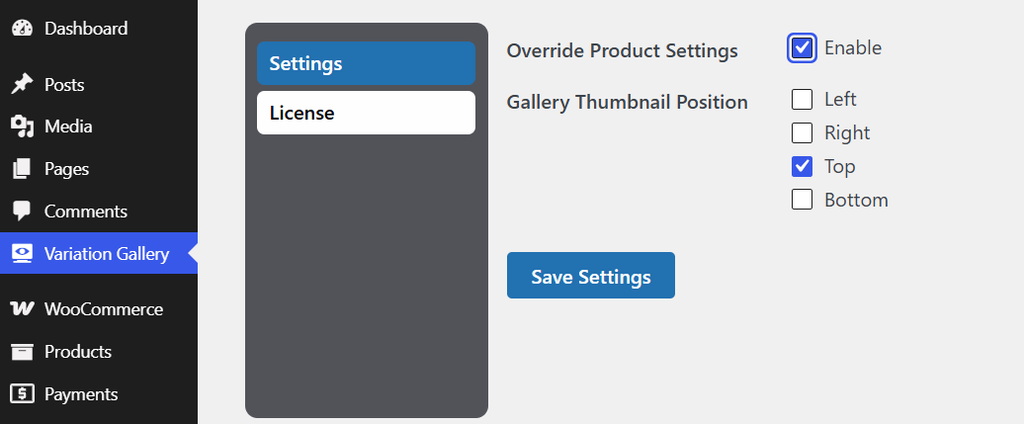
Back To TopYou can set up default global rules for how your variation galleries will behave across your entire store. If Override Product Settings is enabled, these global settings will override any variation of the Gallery settings for variable products.
- Go to WordPress Admin Panel → Variation Gallery → Settings
- Select the checkbox of Thumbnail Position
- Click the Save Settings
07. How Gallery Settings Thumbnail Position Works
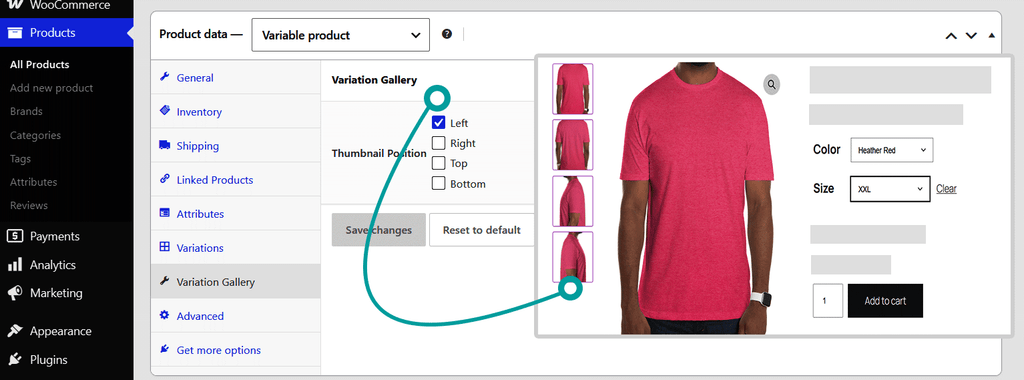
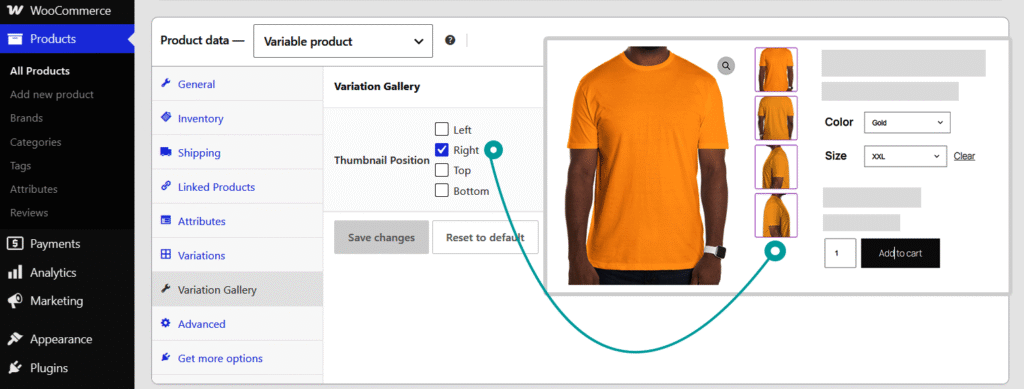
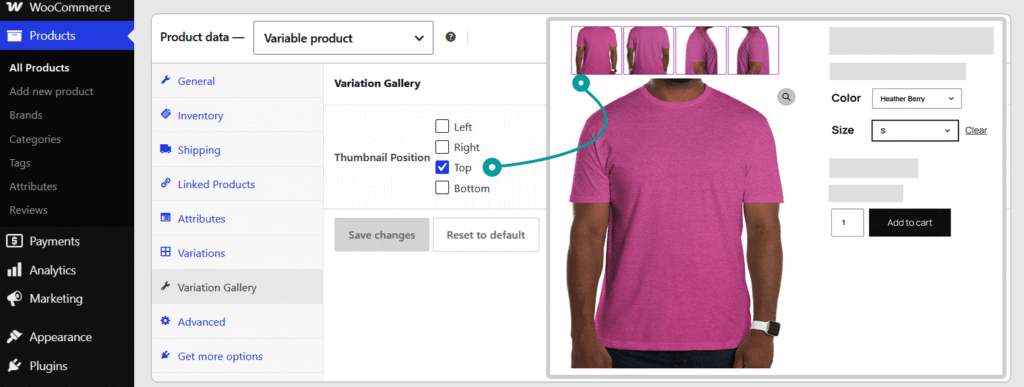
Back To TopThe product gallery settings offer ( Pro ) four available options, allowing you to choose the thumbnail position that best suits your needs.
01. Thumbnail Position Left ( Pro )
02. Thumbnail Position Right ( Pro )
03. Thumbnail Position Top
04. Thumbnail Position Bottom